


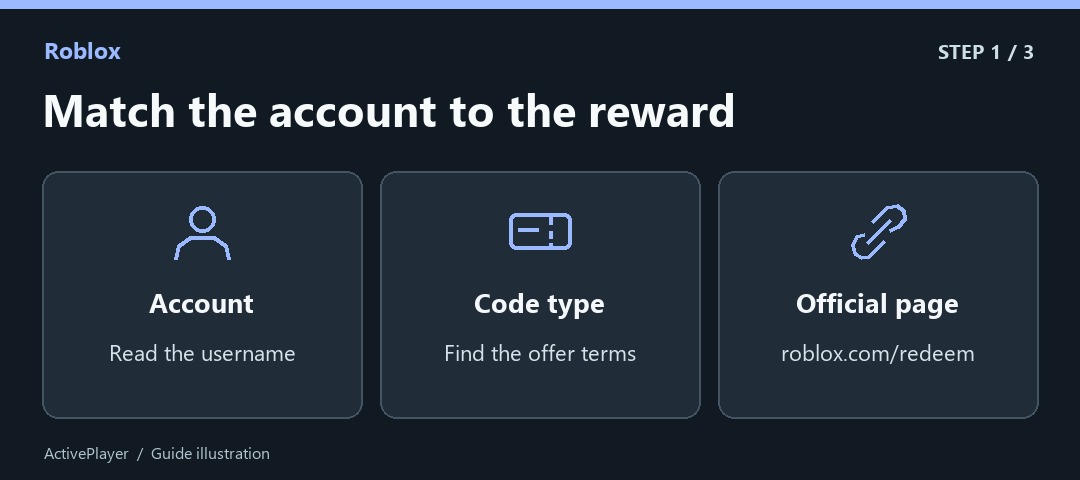
The most useful thing to check before entering a Roblox code is the username at the top of the page. A successful redemption can still look like a missing reward if another person was signed in on the same browser. You can avoid that problem before you touch the Redeem button.
1. Match the account and the type of code
Sign in to the account that should receive the reward, then open the official Roblox redemption page. Read the original offer so you know what to look for afterward. Roblox distinguishes account credit, Robux and virtual items. If an experience creator issued a code with instructions for their own game, follow that offer’s directions. A Roblox music asset ID serves another purpose, as our guide to Roblox music IDs explains.
2. Enter the code and read the confirmation
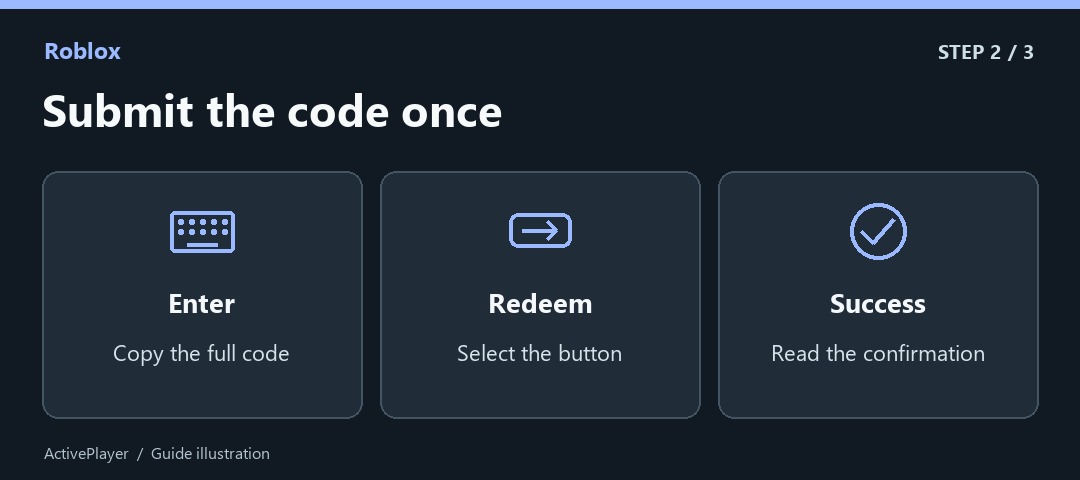
Type or paste the complete code into the box and select Redeem. Look for the success message before closing the tab. Keep an eye on the reward named in the offer. Redeeming a code for a backpack gives you an inventory item, so checking your Robux balance will tell you nothing about whether it worked. Roblox Support’s instructions show the field and explain the possible reward types.
3. Locate the item or diagnose a rejected code
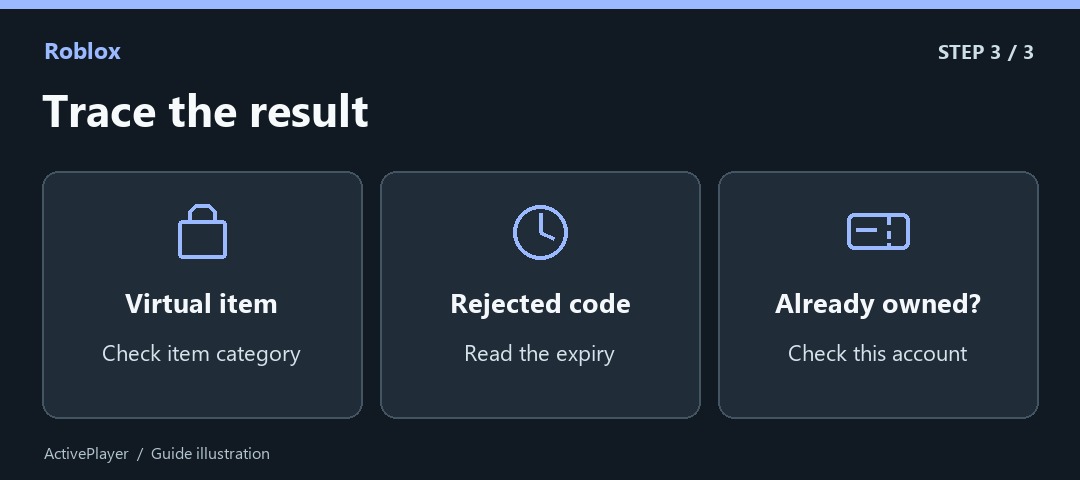
For a virtual item, open the same account’s Inventory and look in its specific category. A backpack, hat and head can be listed separately. If the redemption page rejected your entry, compare it with the original code character by character, check the promotion’s end date and look for the item you may already own. Roblox’s toy and virtual-item guide says each account can redeem a given virtual item only once.
What to keep if the reward still looks missing
Save the name of the promotion, the username you checked, the expected item and the success or error message. That gives Roblox Support something specific to investigate. Keep the unused code private. A list copied from an older promotion can survive online long after its redemption window closes.

