









Your right thumb swipes past the window you meant to watch. A minute later, you try to turn while sprinting and hit crouch instead. Those are two different problems in Call of Duty: Mobile. One points to sensitivity. The other points to where the buttons sit. If taps land on the wrong buttons, fix the layout first. No sensitivity setting can bring a missed button back under your thumb.
Take a screenshot of your current layout and sensitivity before you change anything. Then pick one familiar Multiplayer map or use Practice vs. AI. Keeping the same phone orientation, weapon and scene gives you a fair comparison. The four checks below work with the options your device actually offers. The reference pictures come from Activision’s illustrated controls guide, so the artwork shows an earlier interface.
1. Choose who controls the first shot
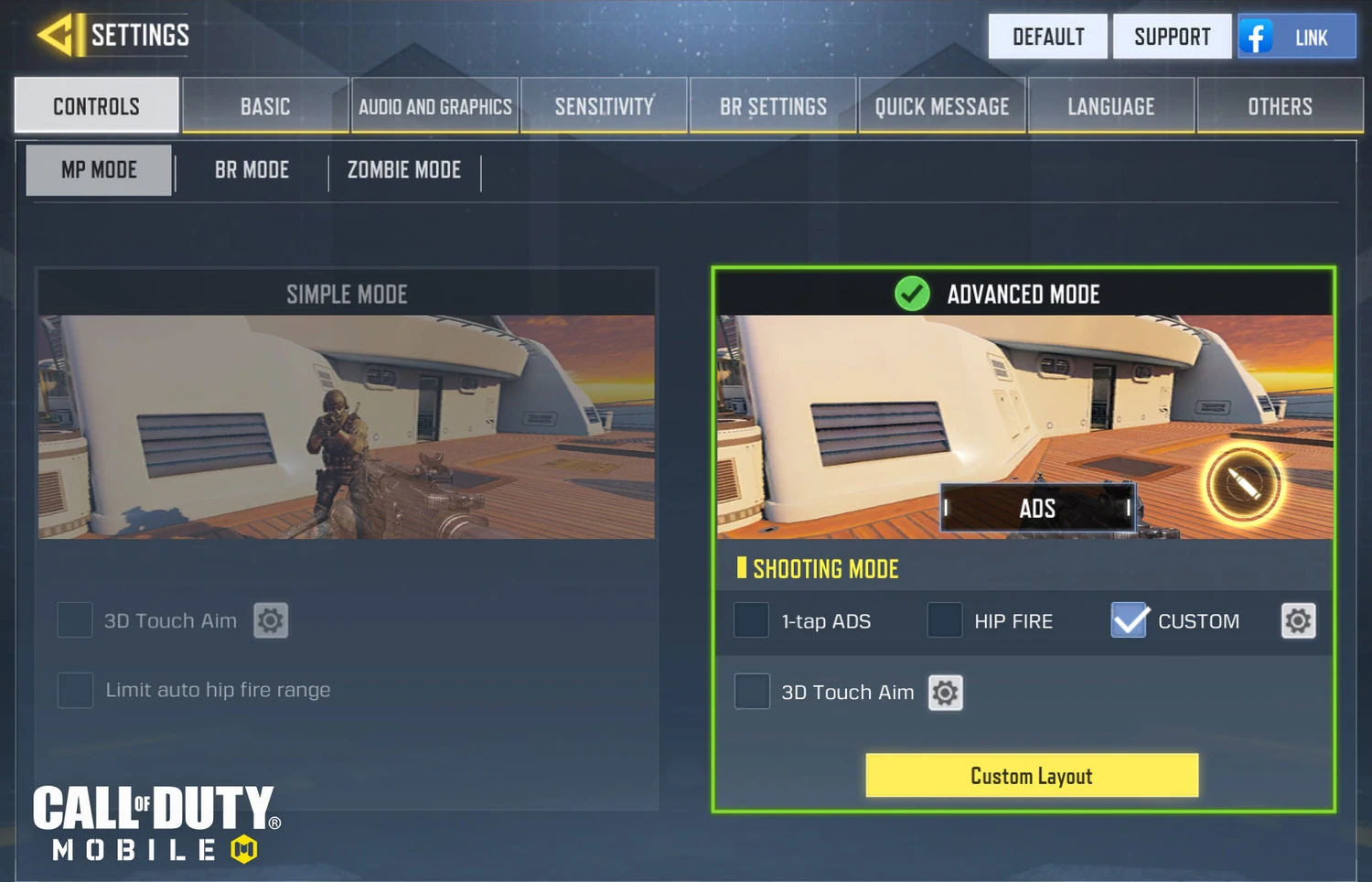
Open Settings → Controls and select the mode you’re setting up. Simple lets the game fire automatically when an opponent crosses your reticle. Advanced gives you a fire button. For a thumb setup where you want to look through a doorway without immediately firing, start with Advanced. If automatic fire is why the game is comfortable for you, keep Simple and test the rest of your layout with it enabled.
Advanced also offers a choice between hip fire and aiming down sights (ADS) when you press fire. Try each against the same practice target. Watch the first action after your tap. If you wanted to fire immediately but your view zoomed first, change that weapon class’s firing option before touching the sensitivity slider. Activision’s Multiplayer support page explains how to practice against AI.
2. Make the buttons fit the way you hold the phone
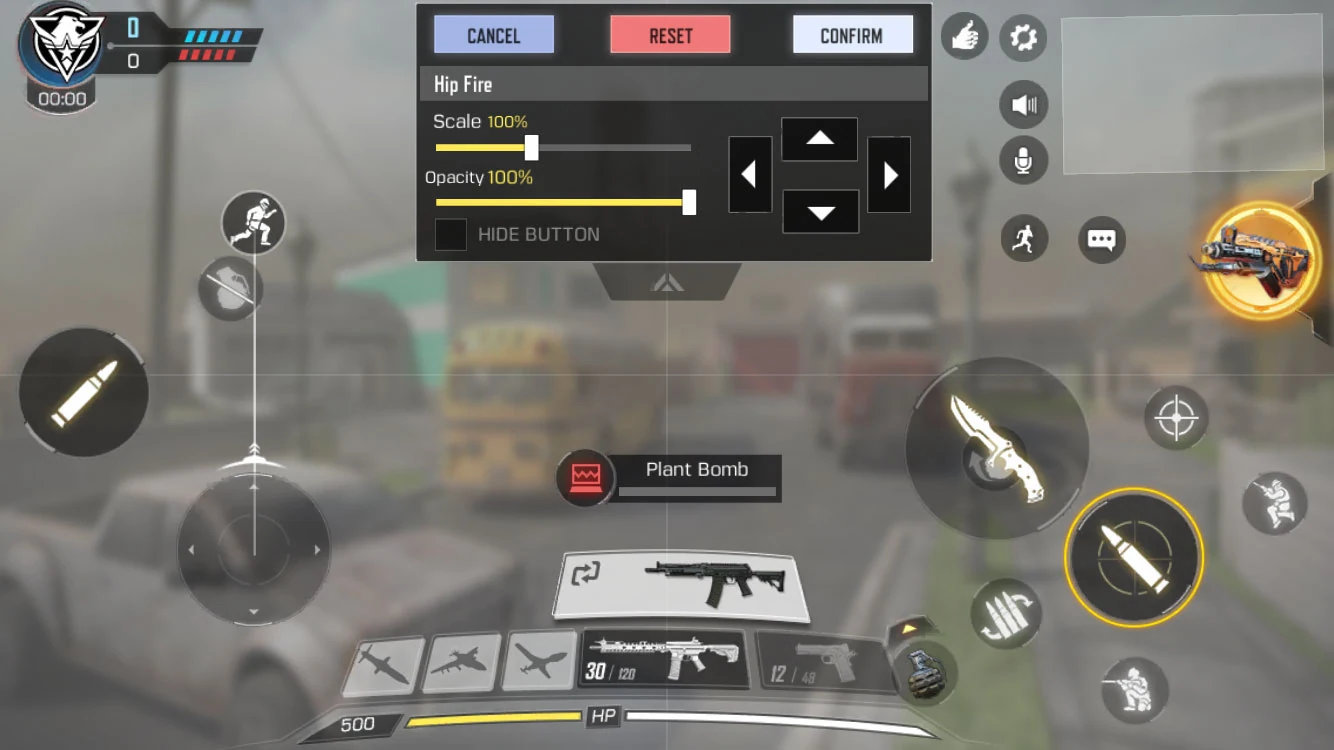
In Controls → Custom Layout, hold your phone as you do during a match. Put your left thumb on movement and draw your normal turning arc with the right. Keep that arc clear. Slide the button you miss most often toward the spot where your thumb naturally lands. Adjust one button, confirm the layout, then test it.
Try this sequence five times in practice: move, turn, aim, then crouch. If you crouch while turning even once, give those controls more space before making the crouch button bigger. If you land beside the same button each time, moving it is a better first change than making every button larger. Leave frequently missed controls visible while you learn the layout.
3. Use two landmarks to calibrate sensitivity
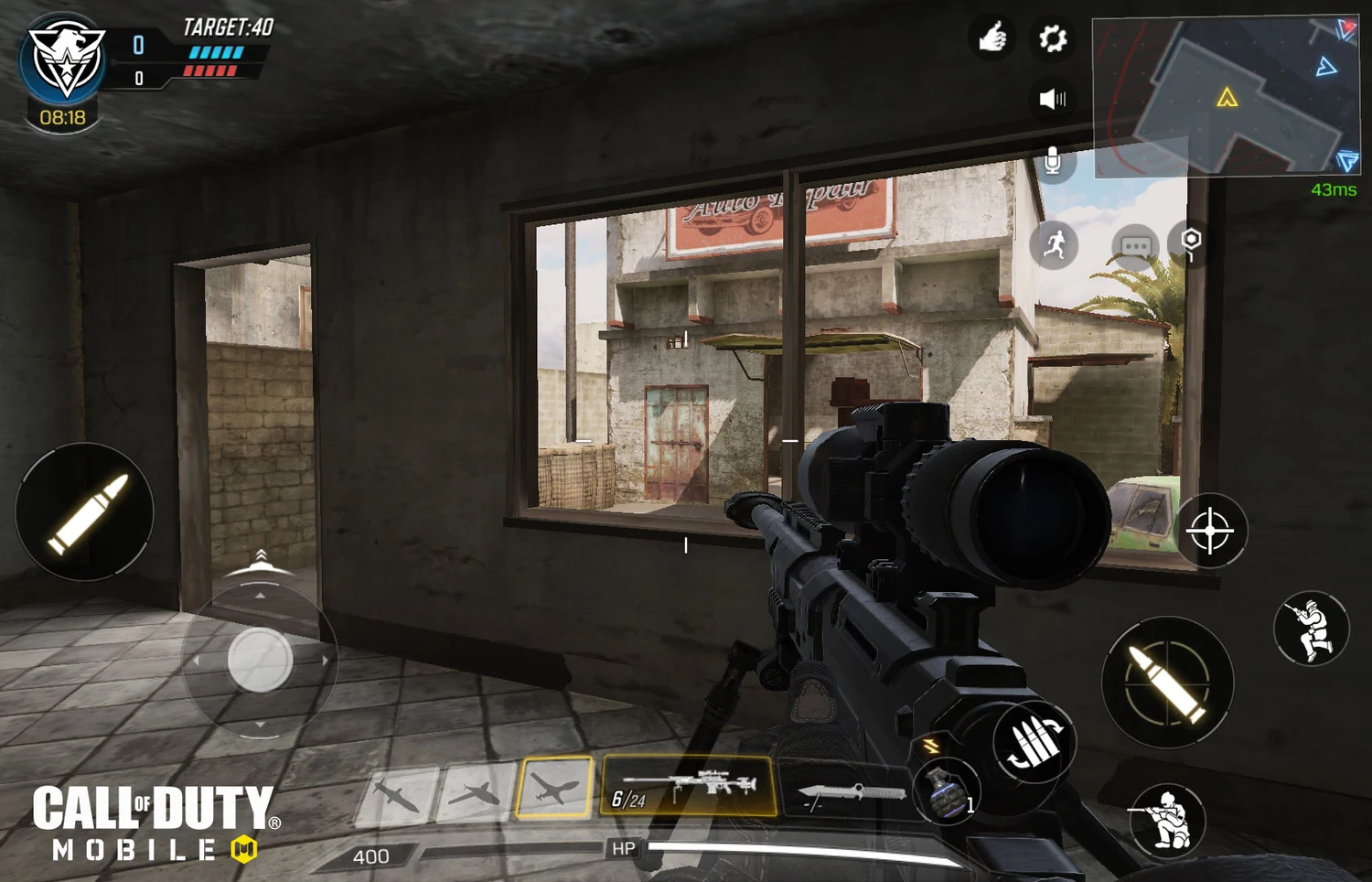
Stand still. Pick two visible points such as opposite edges of one window. Start with the crosshair on the left edge and use one comfortable swipe toward the right. Do that three times without aiming down sights, then three times while aiming down sights. Keep the distance between your thumb’s starting and finishing points the same.
| What you see | What to change next |
|---|---|
| You pass the far edge on all three ordinary swipes | Lower the normal camera sensitivity a little. Repeat before changing an ADS setting. |
| Ordinary swipes stop on the edge, but the scope sails past it | Leave the camera setting alone and lower the sensitivity for that sight or zoom level. |
| You stop short on every attempt | Raise the setting for the view you actually tested. An occasional short swipe alone is a poor reason to change it. |
| The sight moves when you tilt the phone | Check Gyroscope. With While ADS selected, tilt affects the sighted test even when your thumb stays still. |
If you like gyro, try While ADS as its own experiment. Bring the sight near the landmark with a swipe, then use a small tilt for the last adjustment. If the view drifts before you touch the screen, put the phone in the same resting position and repeat with gyro disabled. That tells you whether you need a touch adjustment at all.
4. Check smoothness and the extra buttons in Battle Royale
In Audio and Graphics, keep Graphic Quality and Frame Rate as separate decisions. Start with a quality setting your phone handles comfortably. Make the same slow camera turn through a busy scene twice. If it skips in the same place, lower quality one level and repeat with the frame-rate setting held steady. If it stays smooth after a full match, try the next available frame-rate option. Higher settings only help while the phone can sustain them.
A useful distinction: if your camera turns smoothly but other players jump from one position to another, revisit the match connection before rebuilding your HUD. For a graphics problem, the camera pan itself is the comparison. For a touch problem, it’s whether a press registers in the intended place.
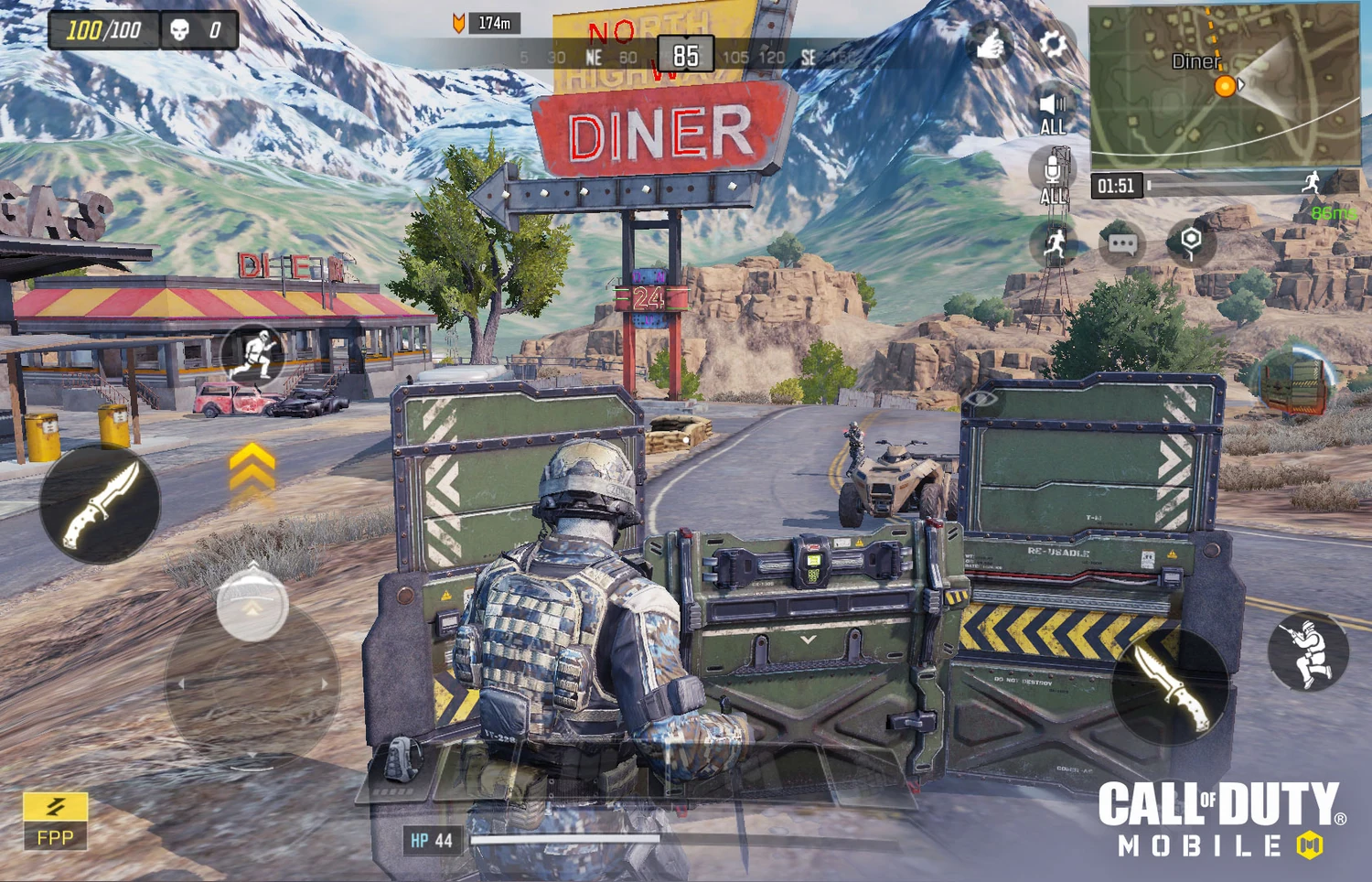
Load Battle Royale and try moving, looking, interacting with loot and switching perspective where offered. A layout that feels spacious in Multiplayer can leave a BR action under your aiming thumb. Activision’s Verdansk overview and its accompanying season video show the mode you’re tuning for.
If you switch to a physical controller, start with ActivePlayer.io’s COD Mobile controller guide. A thumb missing a touchscreen button and a stick turning too slowly need different adjustments. Save a fresh screenshot when both your ordinary swipe and your sighted swipe stop where you expect.

