







If Fortnite feels fine on the Battle Bus but hitches when someone puts a wall in front of you, the lobby FPS number has told you very little. Pick a short route on a Creative island with a distant object, a tight doorway and a place to build. Run it once with your current settings. Come back to that same route after each change. The result you’re looking for is a fight you can read and a frame rate your PC can sustain.
Before changing anything, take a screenshot of your Video and Mouse and Keyboard settings. It gives you a way back if a change makes aiming worse. This ActivePlayer.io guide uses Epic’s illustrated Fortnite PC guide for the menu names. The drills below are ways to compare your own results.
1. Start with the renderer and a clear picture
From the lobby, press Esc, open Settings using the gear icon, and choose Video. Start at your monitor’s native resolution and select Fullscreen. Under Rendering Mode, choose Performance, select Apply, then restart Fortnite. Return to Video once it reopens to check which mode is selected. Epic’s current Performance renderer uses DirectX 12. Selecting full DirectX 12 in the menu exposes a different set of graphics options. Epic’s Performance Mode instructions
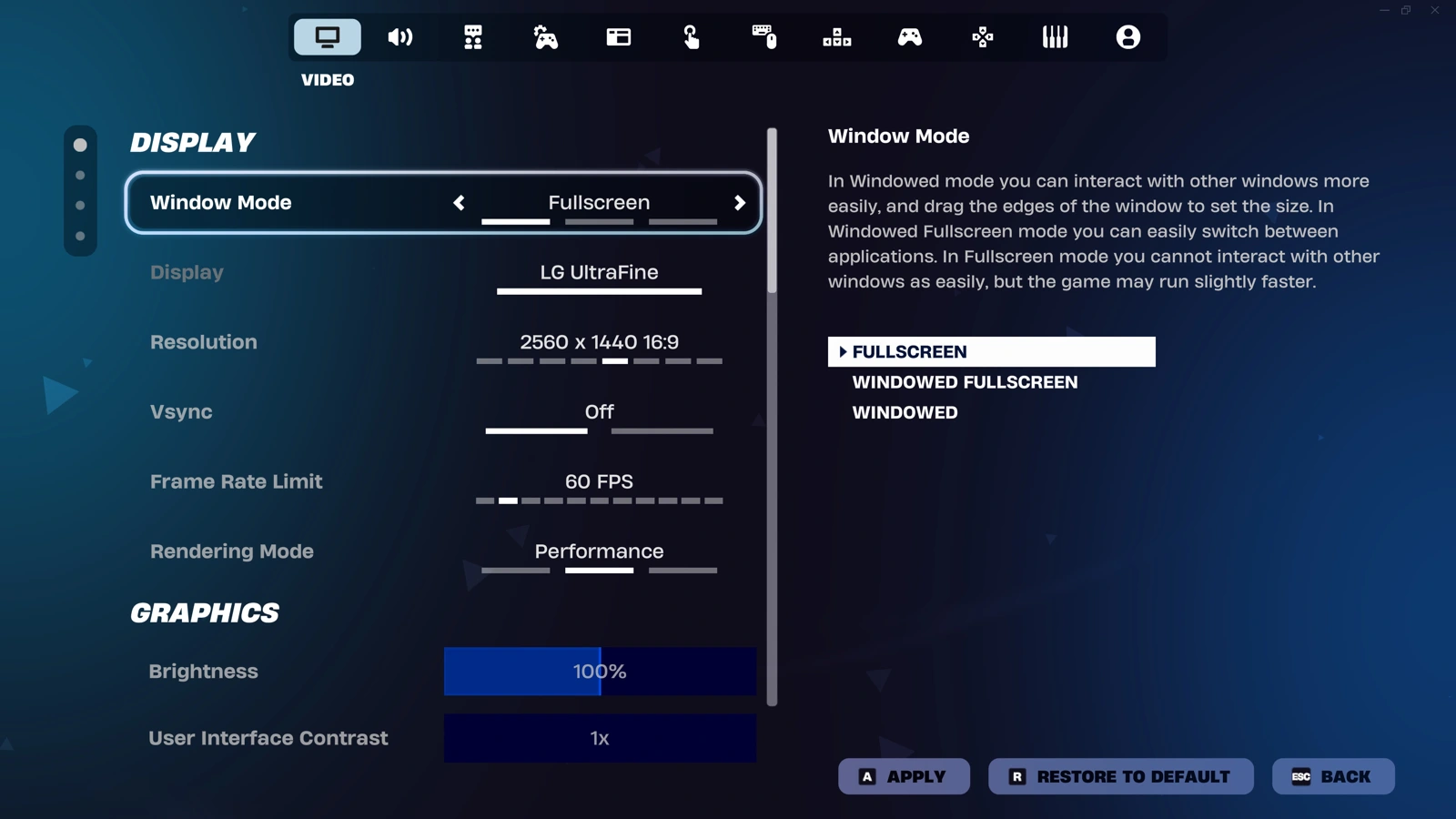
Start Performance mode with Textures and Meshes on Low and 3D Resolution at 100%. That gives you a clear baseline. At your test doorway, turn until the distant object is visible. If it becomes hard to distinguish after changing 3D Resolution, restore the previous value. A fast-moving blur can cost more in a fight than the extra frames are worth.
2. Choose a frame-rate limit your PC can hold
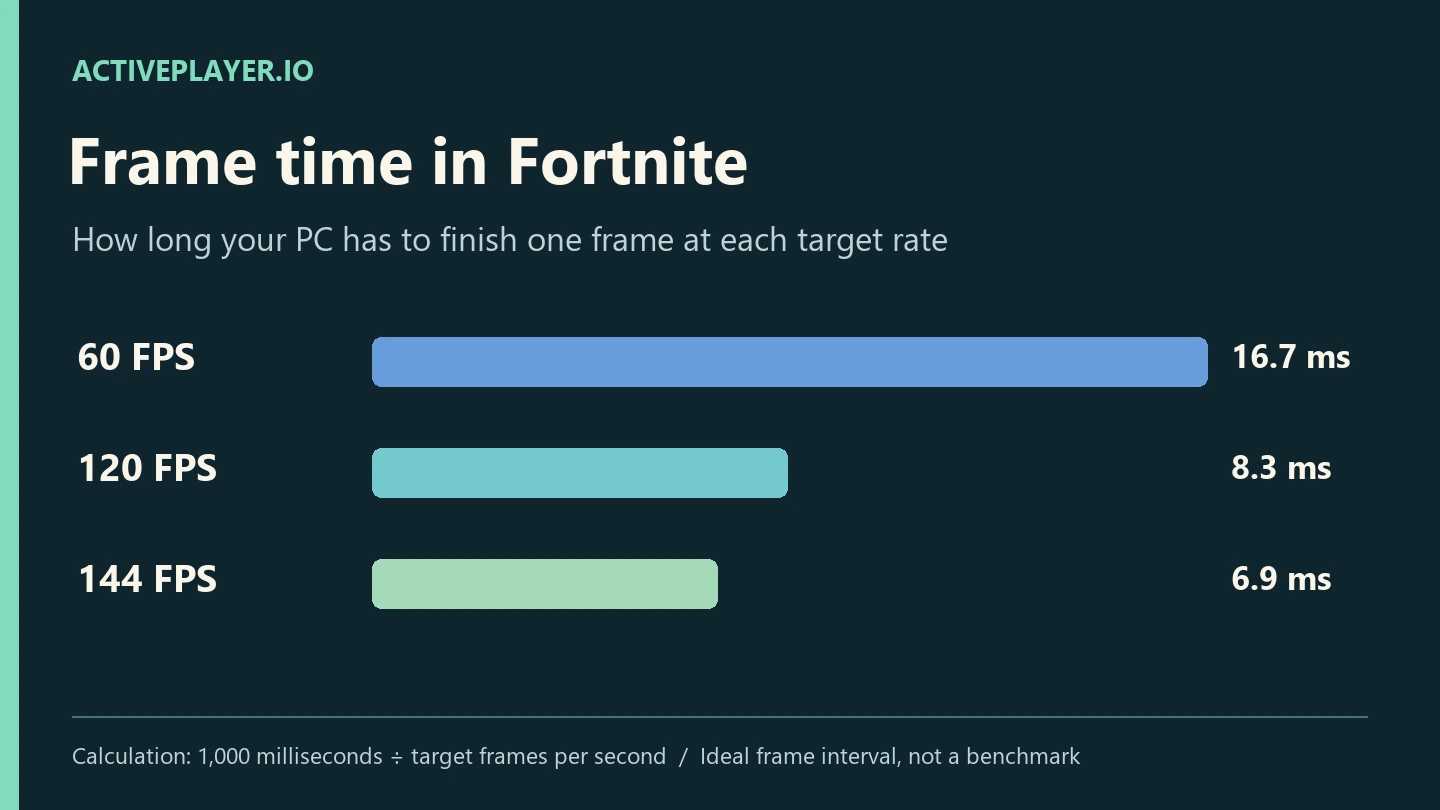
Enable Show FPS in Video. Run the same route and build through that doorway. Watch what happens during the turn and the build, then try an available frame-rate limit close to the rate your PC can sustain there. A 144 Hz monitor can display 144 refreshes per second, but owning one doesn’t make your GPU finish each frame in time.
| What you see on the same run | Change to try next |
|---|---|
| Distant outlines are clear, but the counter drops in fights | Keep the resolution. Compare a lower frame cap, then test a small reduction in 3D Resolution separately. |
| The counter is steady, but distant edges shimmer | Restore the last clear 3D Resolution. On full DirectX 12, compare the available anti-aliasing and super-resolution options. |
| The picture tears during turns | Compare a suitable frame cap with your monitor’s refresh or variable-refresh settings. Test before keeping the change. |
Epic describes what anti-aliasing and super resolution do in Fortnite. Check which options your hardware actually lists. If the FPS counter stays steady while characters snap backward, try the same drill in a second match before sacrificing more image quality. A display setting can’t correct a network interruption.
3. Use a sound cue you can reproduce
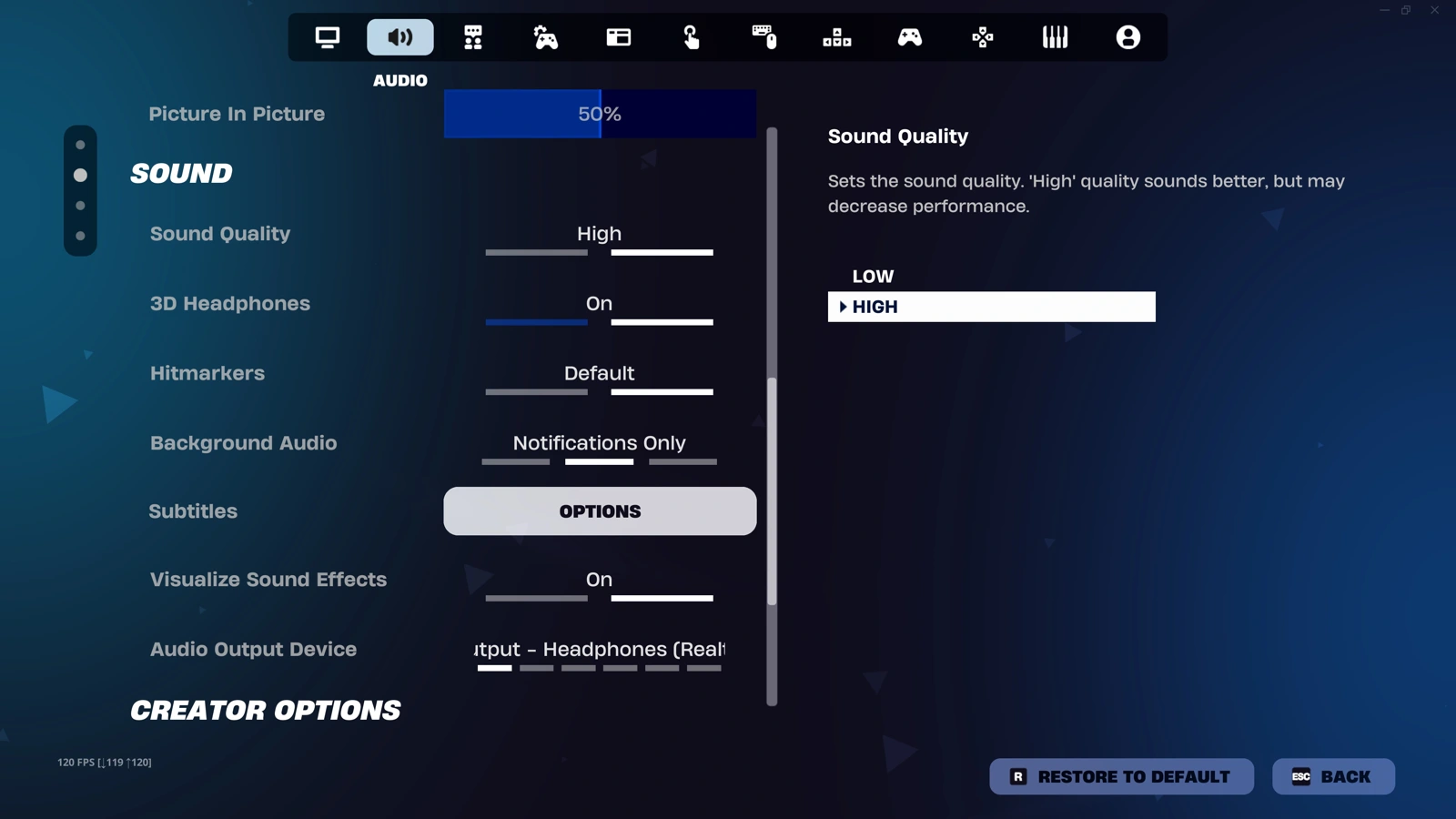
In Audio, enable Visualize Sound Effects. In a private session, ask a teammate to move from one side of a wall to the other. Watch the indicator as you turn, then listen again with your headphones. Epic’s guide also shows the 3D Headphones control. Try it separately so you can tell which change helped. An indicator gives you a direction to investigate. You still need to check the doorway, floor or rooftop before committing to a fight.
4. Set your mouse for a repeatable turn and a precise stop
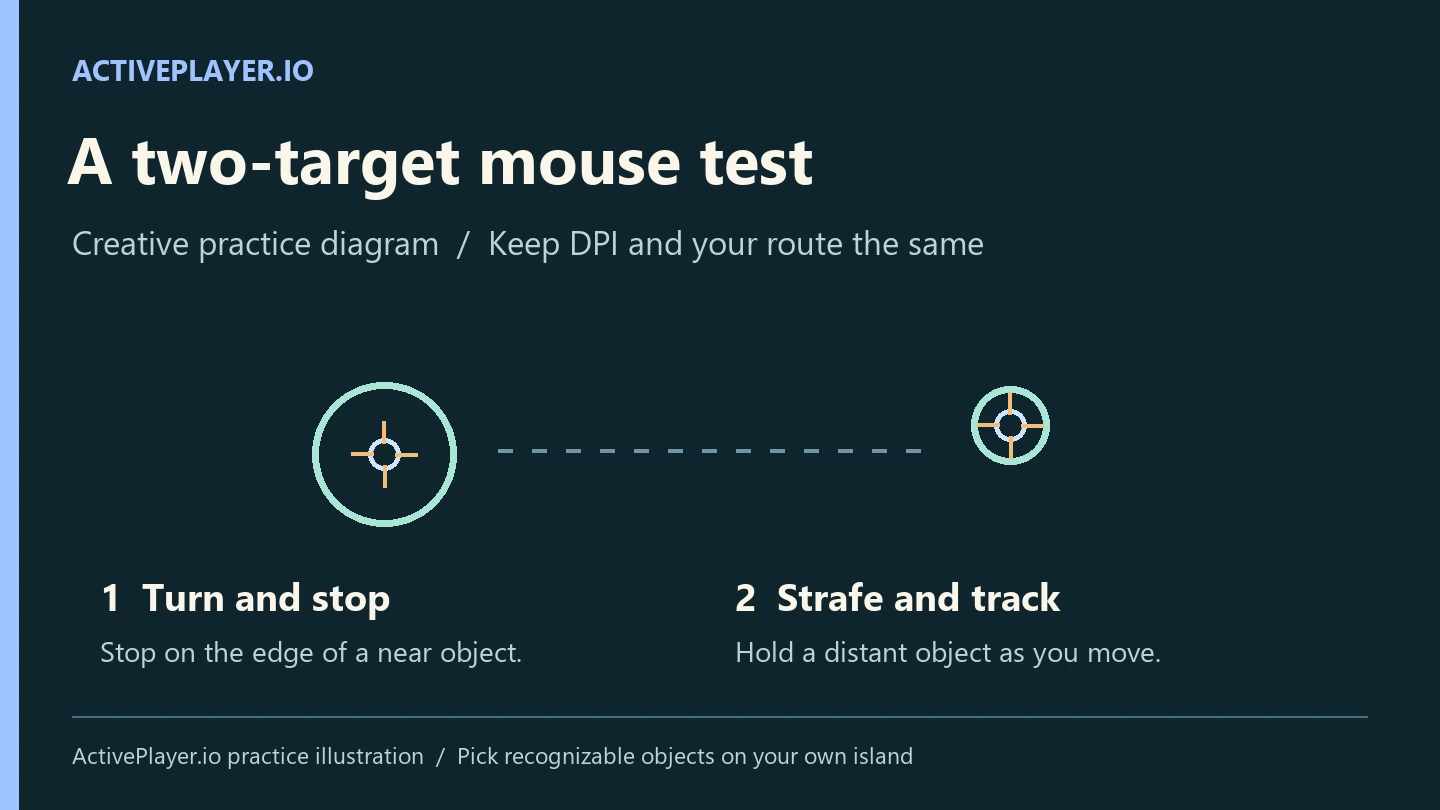
Keep your mouse DPI fixed for the drill. In Mouse and Keyboard, note the X-Axis and Y-Axis Sensitivity values. Pick two objects at different distances. Turn toward the near one, stop on its edge, then track the far one while moving sideways. Overshooting both several times is a reason to try a small decrease. Repeatedly hitting the edge of your mousepad before completing a turn is a reason to try a small increase. Repeat before changing it again.
If you build, place your wall and edit controls where you can reach them while still moving. If you play Zero Build, spend that test time on tracking and cover transitions instead. Keep the setup that helps you finish the same action cleanly twice. Once you’ve played enough real matches to compare results, ActivePlayer.io’s Battle Royale stats guide shows where to find your match statistics.

