



If you lose the ball halfway through the same corner in Rocket League, changing every slider at once makes the problem harder to pin down. Start with that corner. A ball slipping out of frame, a car steering when you let go, and a ball jumping backward online can feel remarkably similar while you’re playing. They call for three different fixes.
Here’s the short version: use Camera for what you can see, Controls for how the car responds and Video for how smoothly the PC draws it. The examples below give you something repeatable to try. Your monitor, controller and distance from the screen all matter more than copying someone else’s preset.
1. Build a camera view you can read through a turn
Take a screenshot of your current Camera settings so you can get them back. In Free Play, take the ball toward a side wall, follow it into the corner, then turn back toward midfield. Use the same camera mode and approach speed on each pass. Pay attention to the moment you lose the ball: does it leave the edge of the screen, disappear behind the car or get lost in the shake after contact?
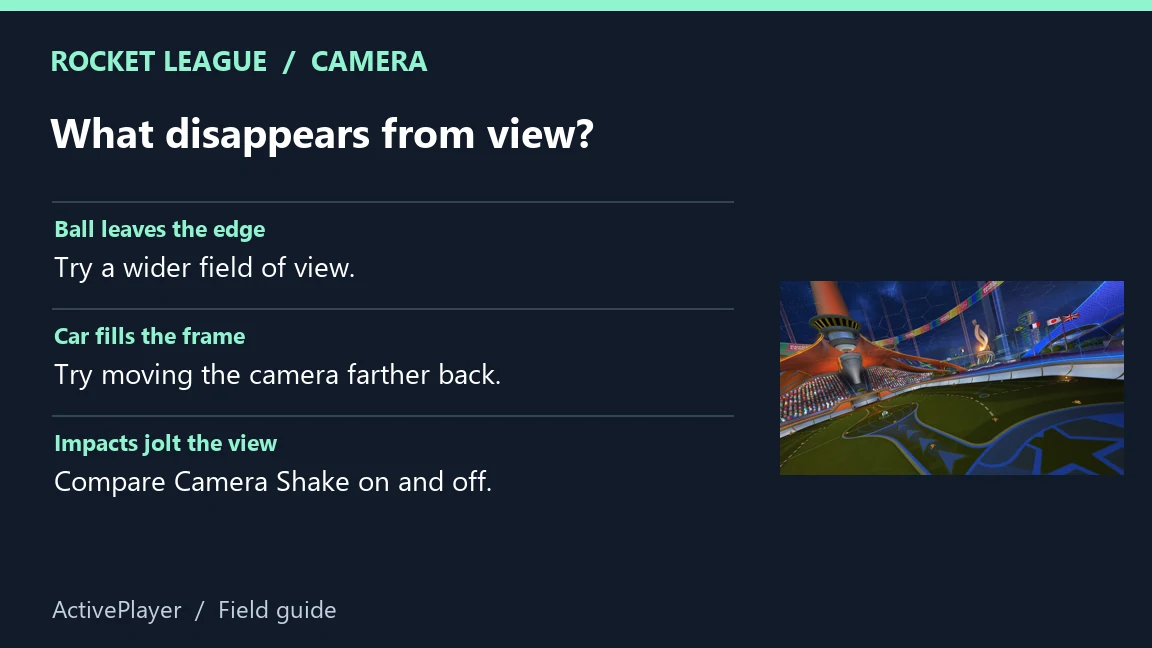
If the ball leaves the side of the screen, try widening Camera FOV by one increment. If the car blocks your view, try moving Camera Distance back one increment instead. A wider view lets you see more of the field, but a more distant ball also looks smaller. Keep the change only if you can still judge the next touch. If impacts are the distraction, switch Camera Shake off and repeat the same challenge. Epic’s camera guide explains each control.
Check your controller before moving the camera again
On a controller, drive straight in Free Play and let the steering stick return to center. If the car consistently pulls to one side, note your Controller Deadzone and try a small increase. Then try a gentle turn. A setting that masks drift can also ignore a small steering input you meant to make. Dodge Deadzone answers a different question: how far you must tilt the stick to dodge when you jump again. If a planned double jump turns into a backflip, check that setting separately. Keep your original values handy.
2. Change one graphics setting and repeat the same play
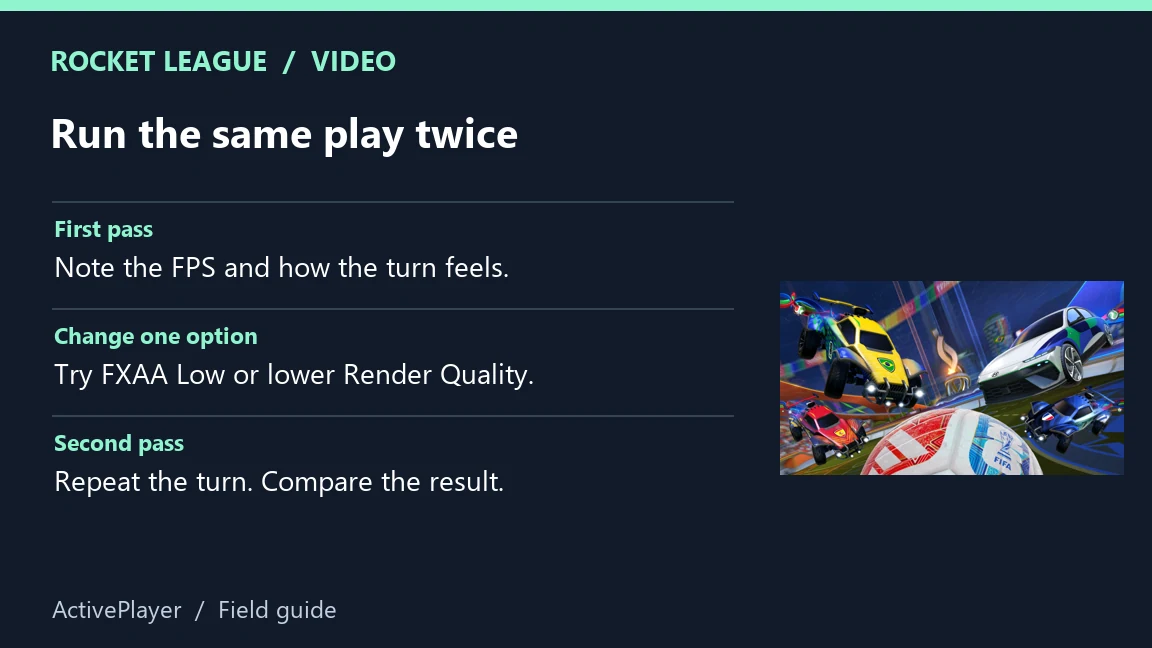
Open Settings → Video from the lobby. For a PC dropping frames, Epic suggests trying FXAA Low or Off and lowering Render Quality or Render Detail. Start with one of these changes. Run the same corner drill, using the same arena and camera. If the change buys smoother turns but makes a distant ball hard to pick out, restore it and try a different option. Epic’s PC video-settings instructions.
| What you notice | First comparison | What to look for |
|---|---|---|
| A hitch when effects fill the screen | Lower Particle Detail, then repeat | Does the hitch still occur at the same point? |
| A blurry ball at midfield | Restore Render Quality | Can you judge the bounce earlier? |
| The car moves smoothly in Free Play but jumps online | Keep the video settings for now | Compare latency and packet loss in an online match. |
3. Use the PC graphs to separate stutter from connection problems
Open Settings → Interface → Performance Graphs. Choose Performance Summary first. FPS tells you how many frames the game draws each second. Frame time tells you how long a frame took, which helps explain why a seemingly decent average can still feel rough. As a reference, 60 evenly spaced frames per second leave about 16.7 milliseconds per frame. That’s arithmetic, not a target every PC needs to hit.
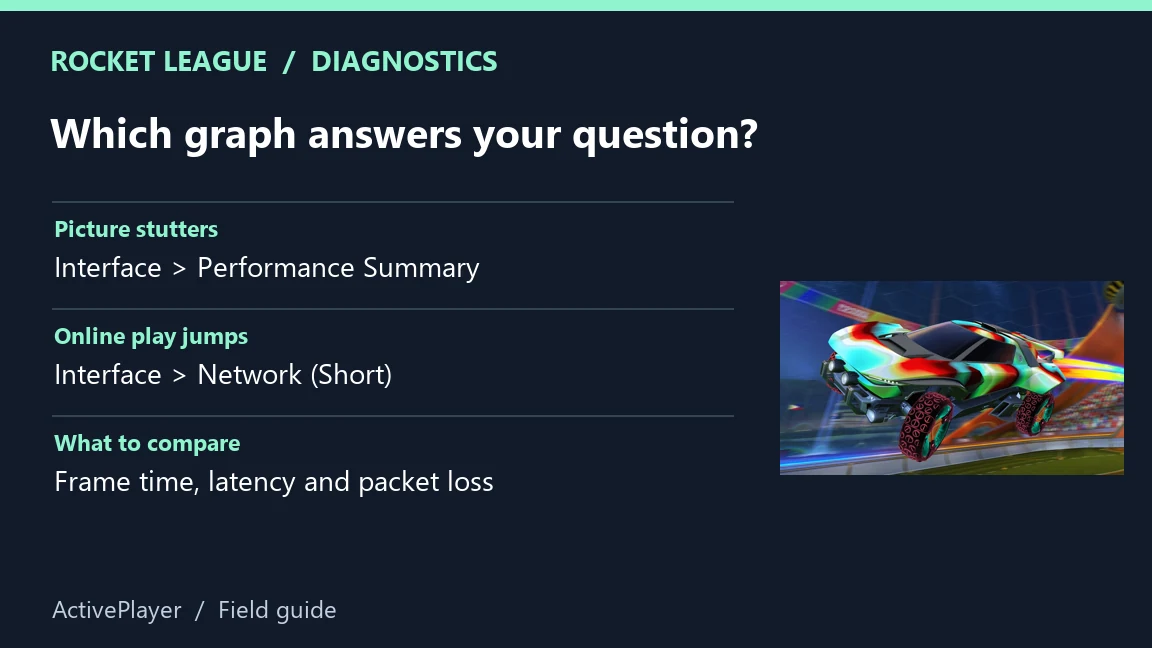
When the game draws smoothly but the ball seems to snap to another position online, switch to Network (Short). Look at latency and incoming or outgoing packet loss when the jump happens. A spike gives you a reason to investigate the connection. One spike alone can’t identify which device or service caused it. Epic explains what the PC graphs measure.
Keep a preset when it fixes your original problem on repeat attempts. If your next issue is getting the right progression to show up on another platform, our ActivePlayer cross-play and progression guide covers that separate setup.

